The whole core loop, on a real example: a 30-second UGC ad for a skincare brand — from a twoline brief to a finished vertical video, with every approval along the way
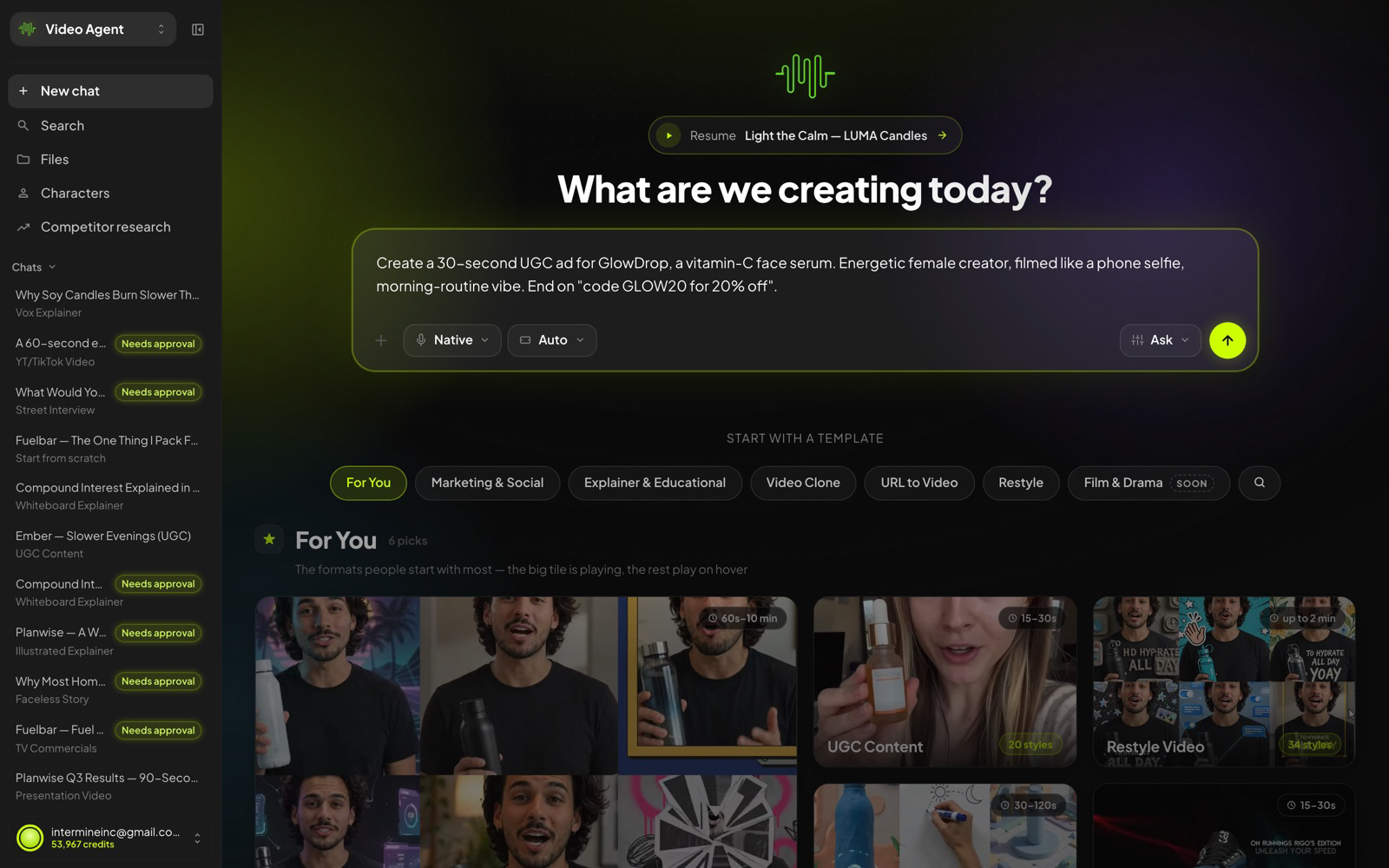
Write the brief
A good brief has four ingredients: what it’s for, who’s on camera, the vibe, and the call to action.
That’s it — the agent fills in everything else and asks when it needs more.
- Name the product and format: “a 30-second UGC ad for GlowDrop, a vitamin-C face serum.”
- Describe the person and tone: “energetic female creator, filmed like a phone selfie, morning-routine vibe.”
- End with the action you want: “end on ‘code GLOW20 for 20% off’.”
- Press Enter. The agent picks the right format from your description — and says so, so you can switch.
TIP
Write direction, not scripts. Say what should happen and the agent writes lines that fit the format — or paste exact wording and it will keep it.
Attach files & mention assets
The agent builds from what you give it. Real product photos, footage, screenshots and past renders can all be pulled into a brief.
- Type @ in the composer to search and attach anything from your Files — uploads and everything the agent has generated for you.
- Click + (or just drag files onto the window) to upload new images and videos straight into the brief.
- Attached media is treated as ground truth — a real product shot keeps every scene true to your packaging.
TIP
Building for a real product? Attach one clean product photo. It’s the single biggest quality upgrade a brief can get.
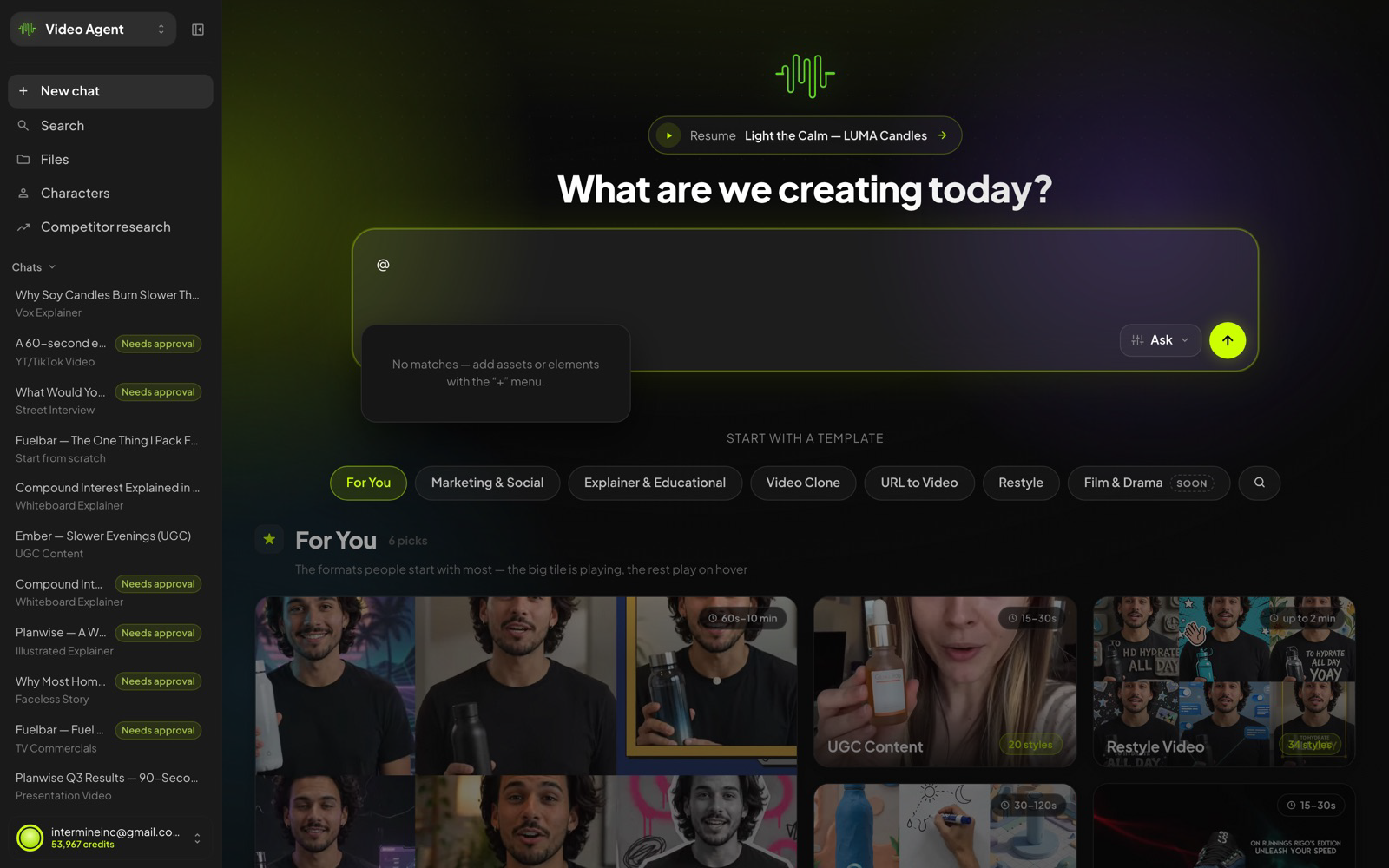
The @ menu — your library, searchable without leaving the composer.
Voice, aspect & build mode
Three pickers under the composer set the defaults for the whole build:
- Voice — Native gives every video a natural narration voice; Custom voice opens your saved voices, including your own clone.
- Aspect — Auto picks the right shape for the format (vertical for UGC, widescreen for presentations); or force 16:9, 9:16 or 1:1.
- Build mode — Confirm before running (default) pauses at every paid step for your approval. Auto-run without asking builds the whole video with no pauses. Ask just answers questions — no project, no spend.
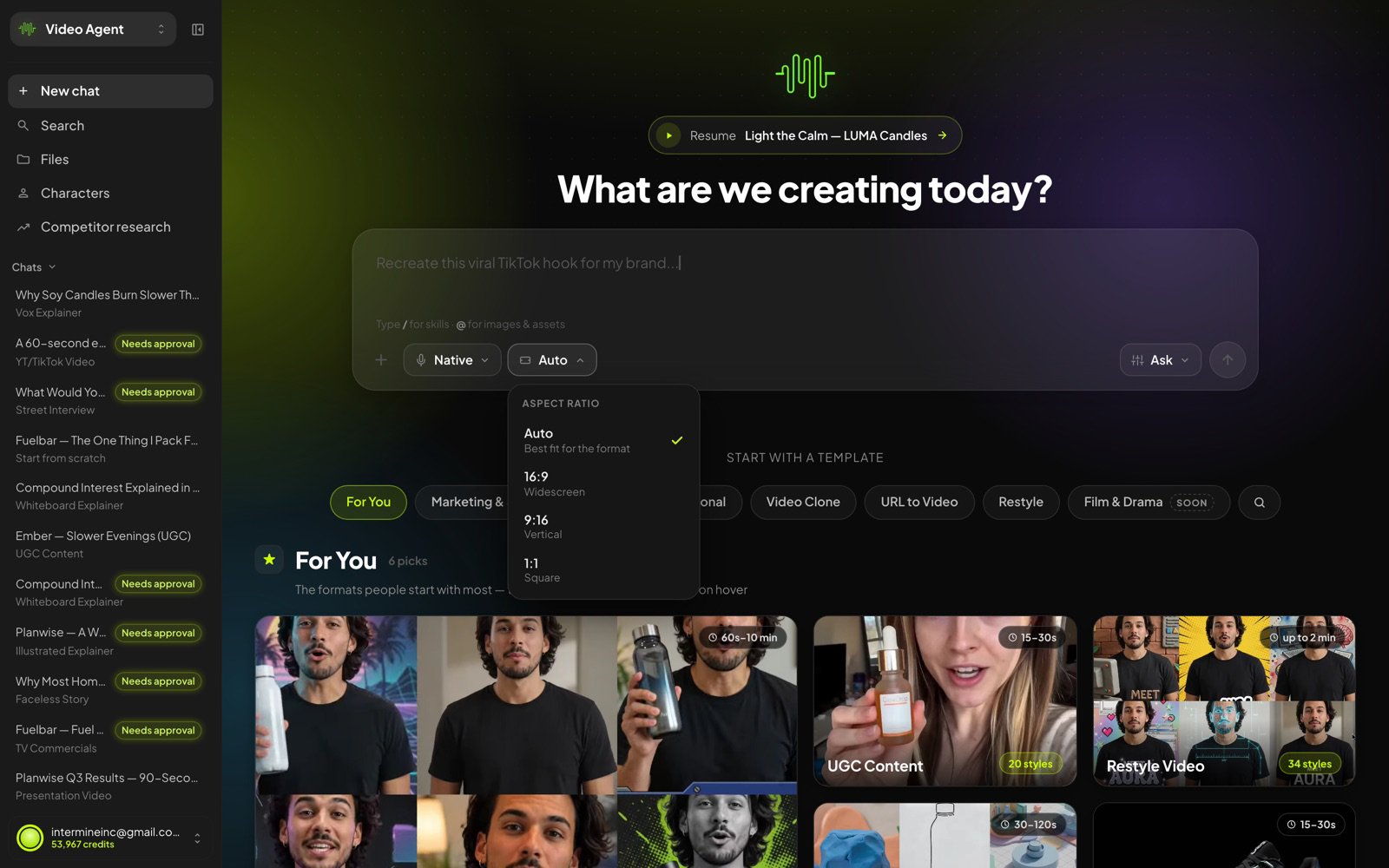
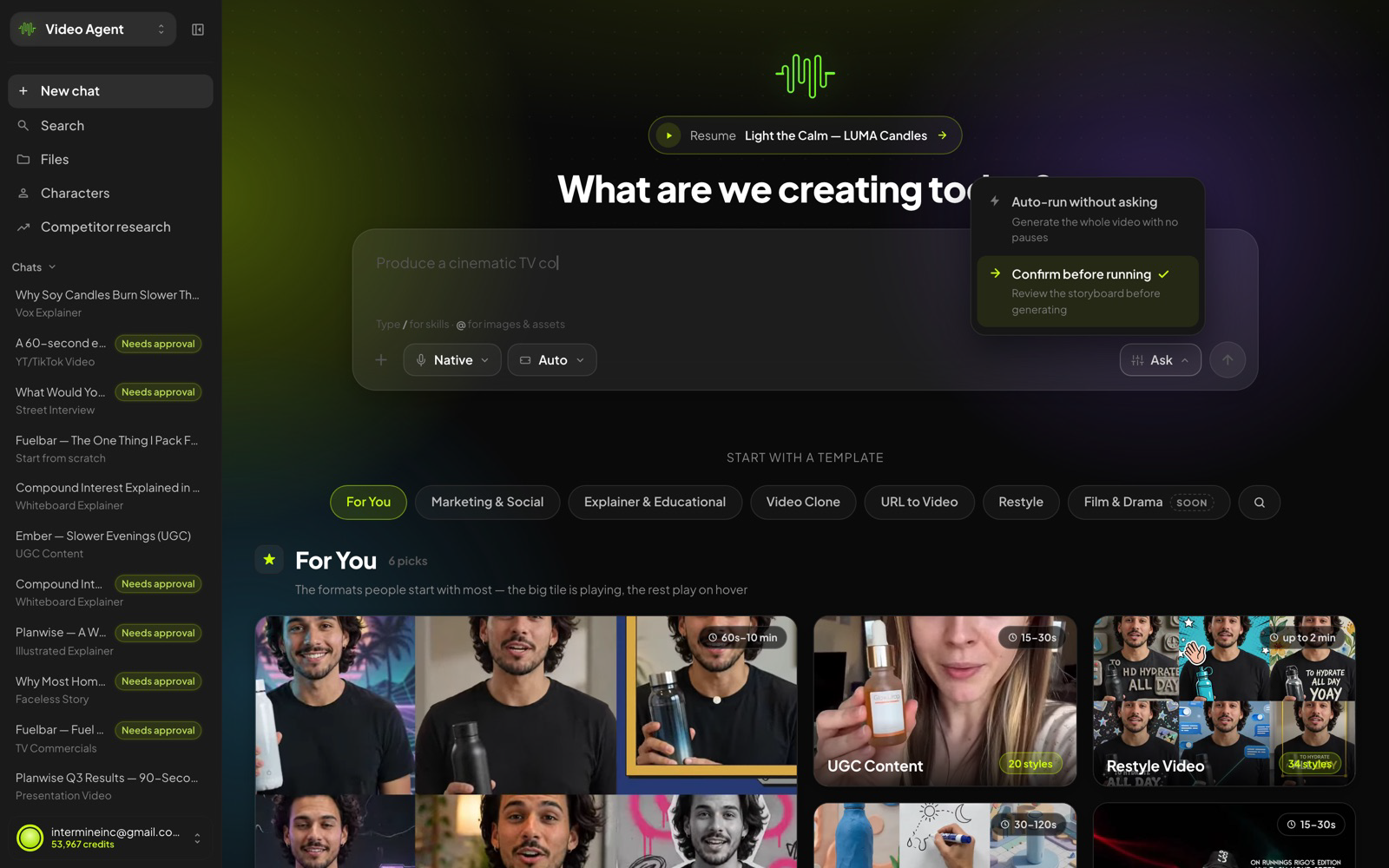
Aspect (left) and build mode (right). Keep “Confirm before running” while you’re learning — you’ll see and approve every step.
Skills — type / for playbooks
Skills are expert playbooks the agent applies to your video— ad formats, industry know-how, editing patterns. There are 28 of them, and the right ones also fire automatically when they fit your brief.
- Type / in the composer to browse: Before & After Ad, Camera Roll Montage, Comparison Test, Deadpan Ad, industry playbooks like Beauty & Skincare, and more.
- Pick one to fold it into your brief — the agent then follows that playbook’s structure and style rules.
- Stack a format skill with an industry skill for the most opinionated result.
TIP
Not sure which to use? Skip it. Skills that match your brief (a vertical ad, a montage with music) join automatically — you’ll see them named in the work log.
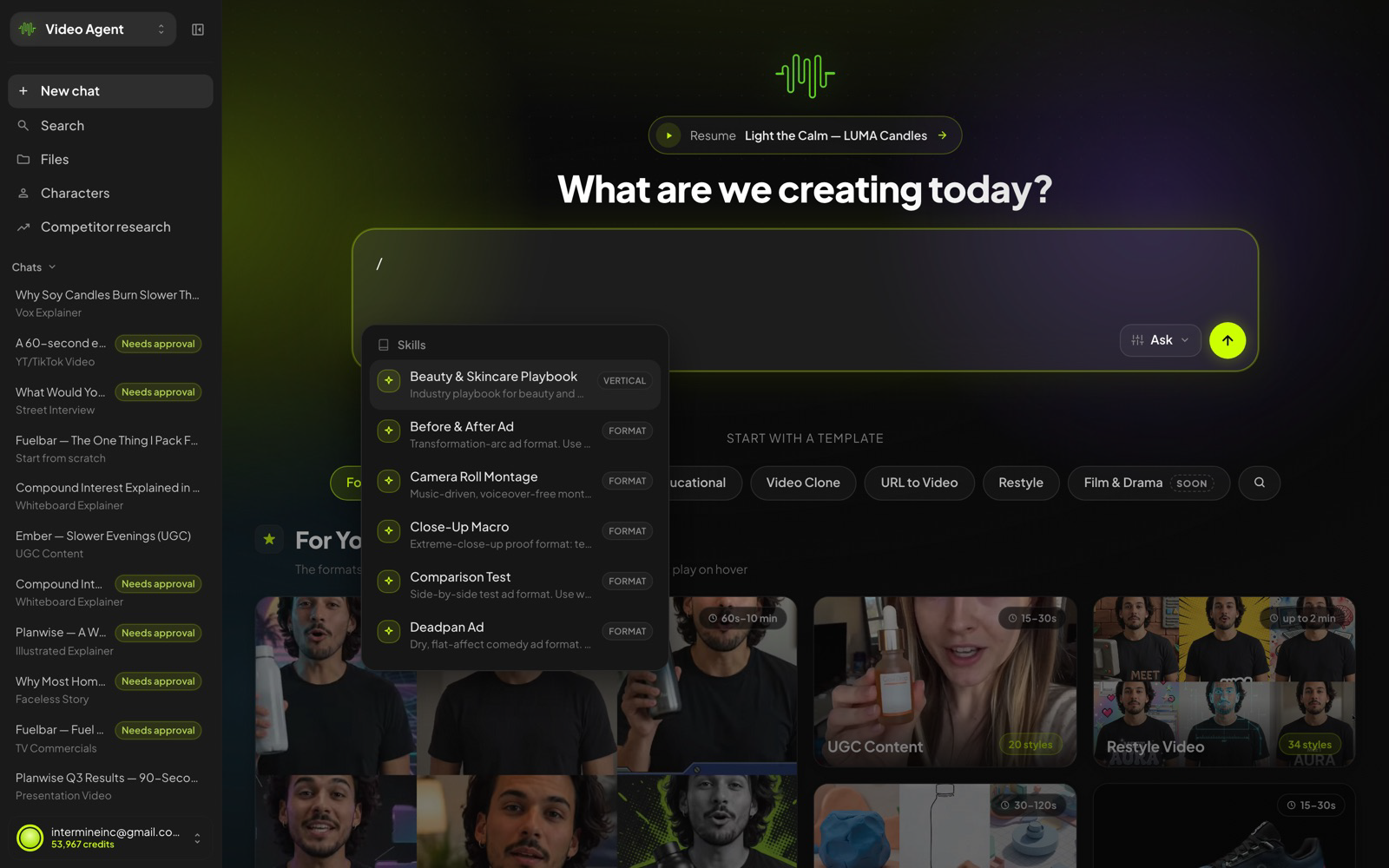
The / menu — format skills and vertical industry playbooks.
Send it — the agent plans
The moment you send the brief, a project opens: chat on the left, Studio on the right. The agent narrates its thinking as it locks the plan.
- It confirms the format — “Starting this as a UGC Content based on your description — if you’d rather a different format, just say so.”
- It locks the product details from your brief so every beat stays true to them.
- It lays out the beats — here, two 15-second scenes: the morning hook, then the payoff and the GLOW20 close.
- The Studio fills in live: scenes on the timeline, each with its own script and estimated length.
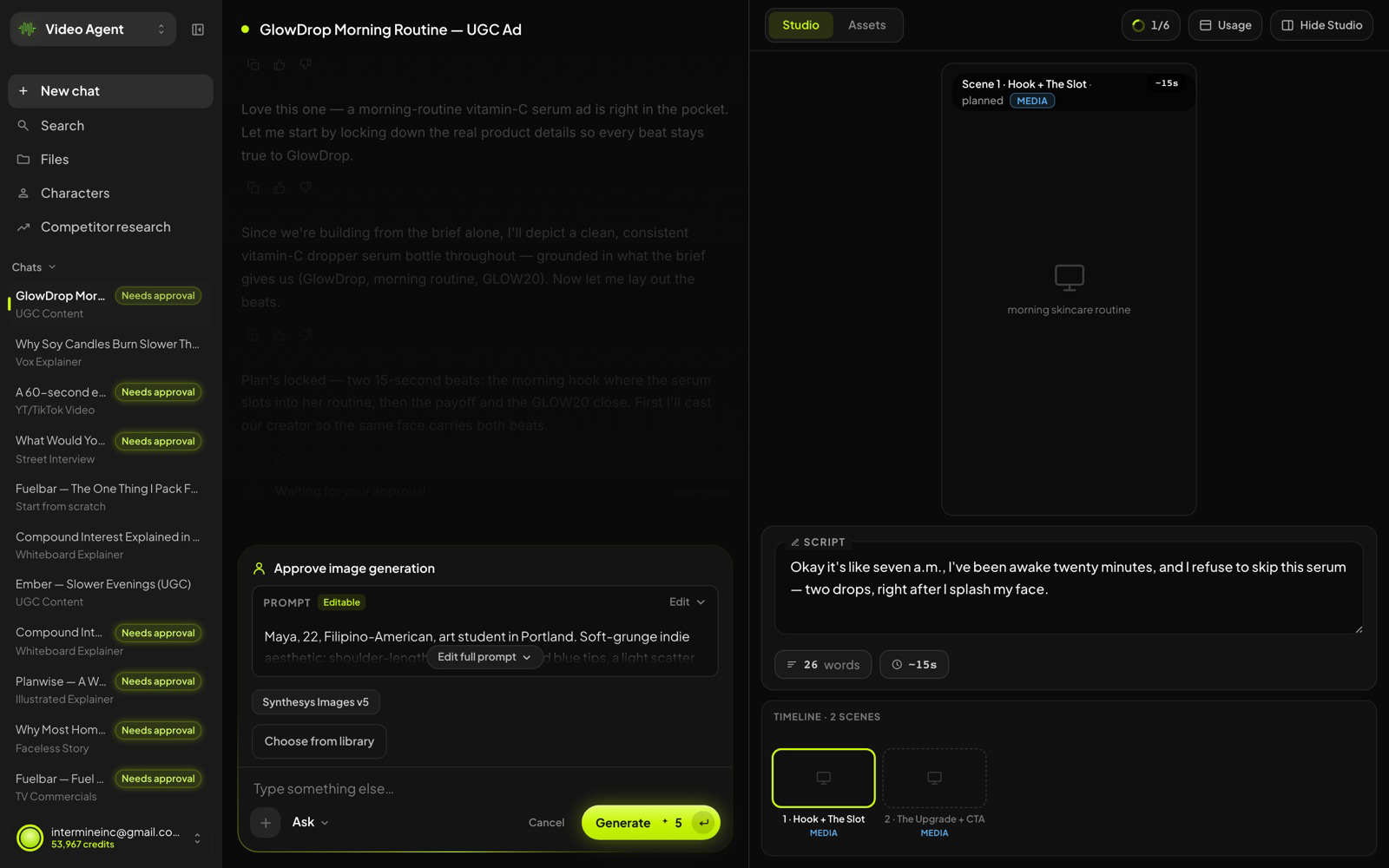
Planning done, first approval up: the scene script is on the right (26 words, ~15s), and the first gate card has arrived in chat.
Approval gates
Before anything paid generates, the agent stops and shows you exactly what it wants to make. The gate appears twice — a card in the chat, and a banner in the Studio — so you never miss it.
- Read the prompt. It’s fully editable — click Edit full prompt to change any detail before generating.
- Check the price. It’s printed on the button itself — Generate ⁺11 means eleven credits, charged only at delivery.
- Choose — approve, edit, pick Choose from library to reuse an existing image, or type something else entirely.
TIP
Gates are conversations. Typing “make her older and change the bottle to amber glass” in the reply box beats editing the prompt by hand.
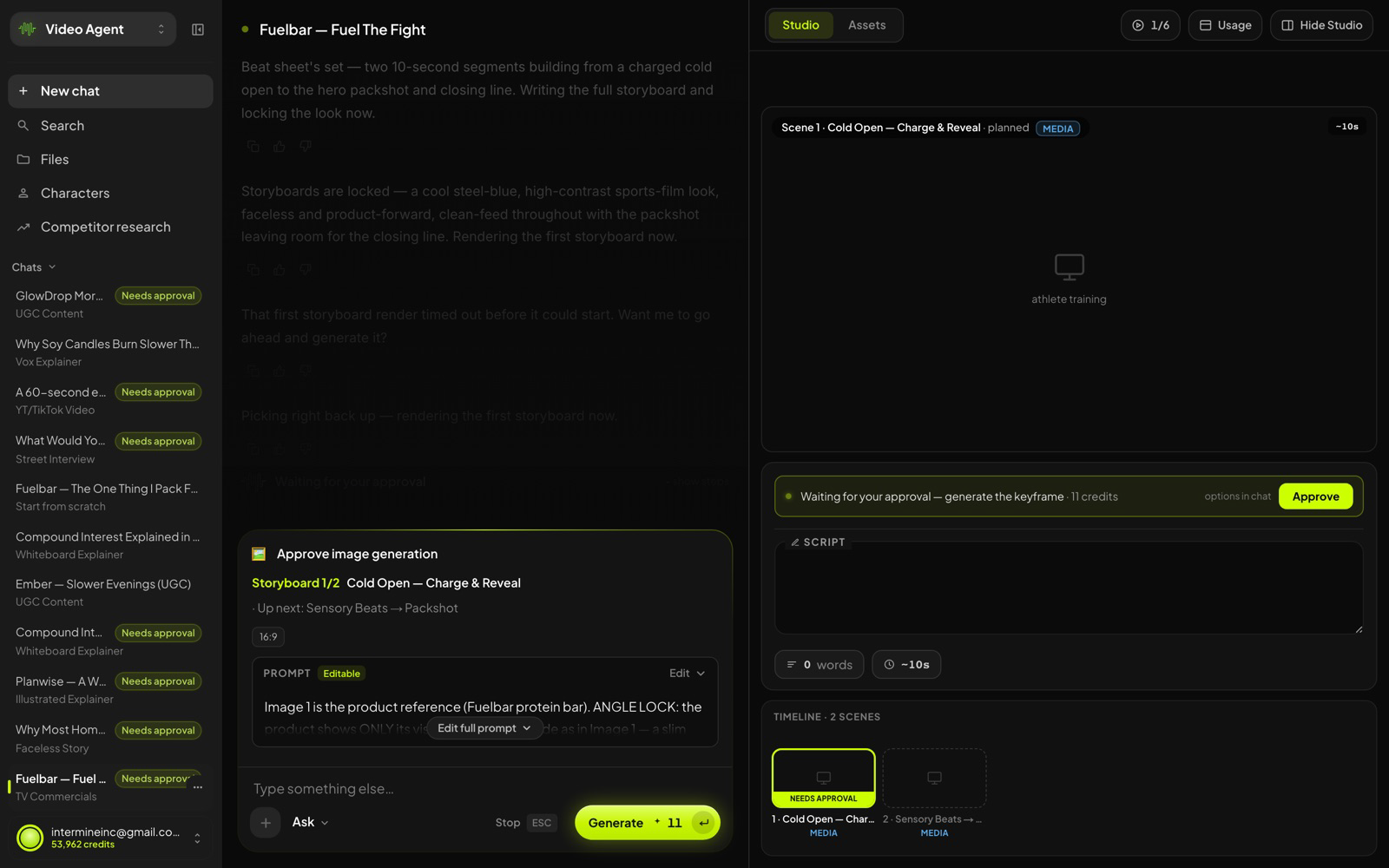
A gate, both places at once: the editable card in chat and the “Waiting for your approval” banner in the Studio — price quoted in both.
Meet your creator
For presenter formats, the agent casts a consistent on camera creator before any footage renders — the same face and energy carries every scene.
- The agent proposes a creator with a portrait and a one-line character brief.
- Approve with Use this creator — or ask for changes in plain language: age, style, setting, energy.
- Prefer a familiar face? Ask to use someone from your Character Library — or your own Twin (Part 4).
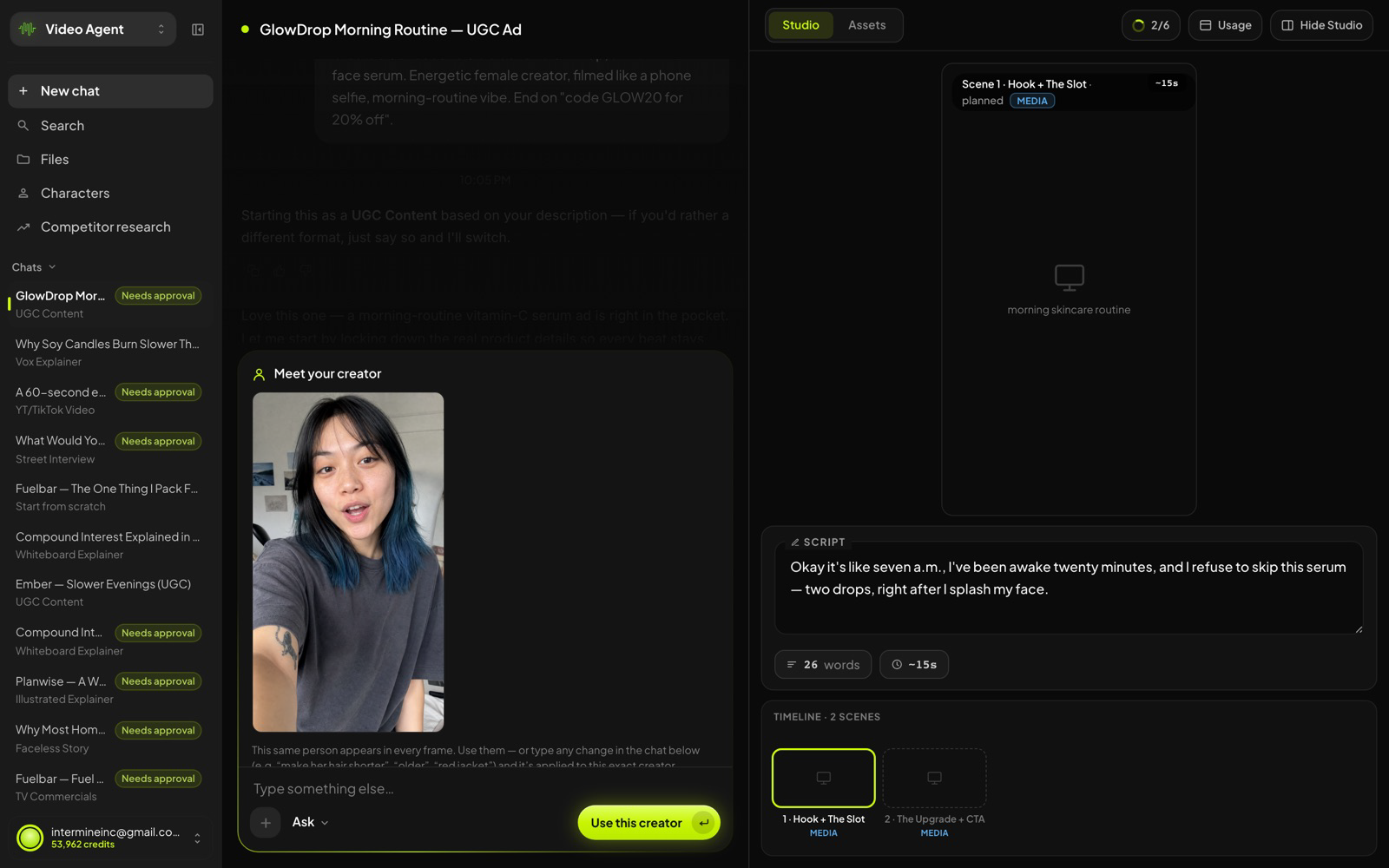
“Meet your creator” — Maya, cast for the GlowDrop ad. One click to accept, or redirect the casting in chat.
The render
The final gate is the big one: rendering the actual footage.
The card shows the full cut being generated, the quality settings, and the total price — then the agent takes it from there.
- Review the clip list and settings on the card — length, aspect and quality are all visible before you commit.
- Approve, and the agent renders every scene, syncs the voiceover, and stitches the final cut with music.
- You can leave. The chat says it plainly: safe to close this tab it keeps building without you and picks up where it left off when you come back.
CREDITS
The GlowDrop ad’s full 30-second render quoted 990 credits on the button — the whole project, images included, came to 1,031.
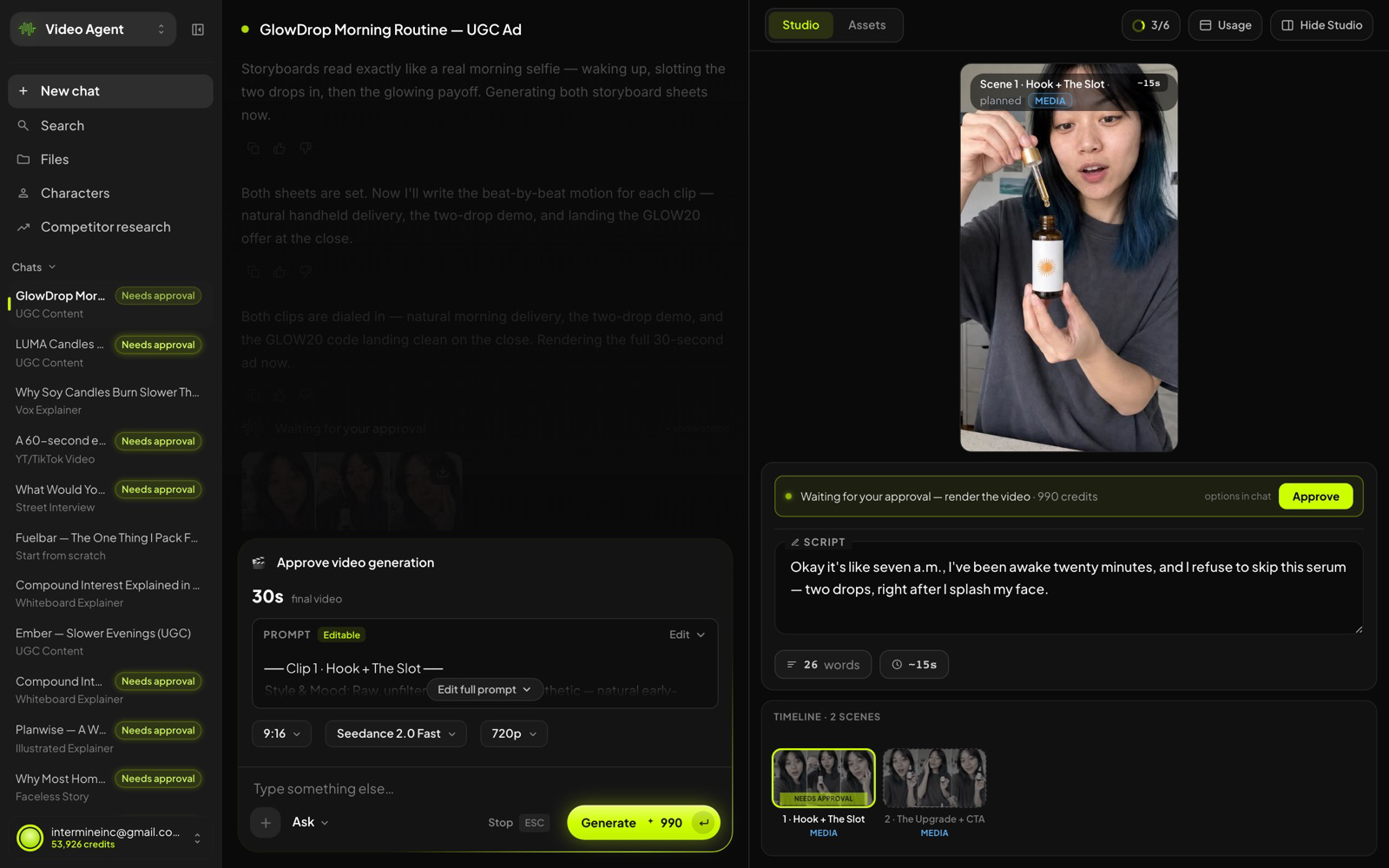
The render gate: a 30-second final video, quality settings in the open, 990 credits on the button.
Your finished video
About half an hour of agent work later, the ad is done — a 30-second vertical cut with narration, music and the discount-code close, playing in the Studio.
- The agent recaps the result beat by beat, so you can check it against your brief without scrubbing.
- The timeline shows the Full video final cut plus each scene as its own clip.
- Recommended next chips suggest sharp follow-ups — tighten the close, add a before-after, test another creator.
- Press Download — and post it.
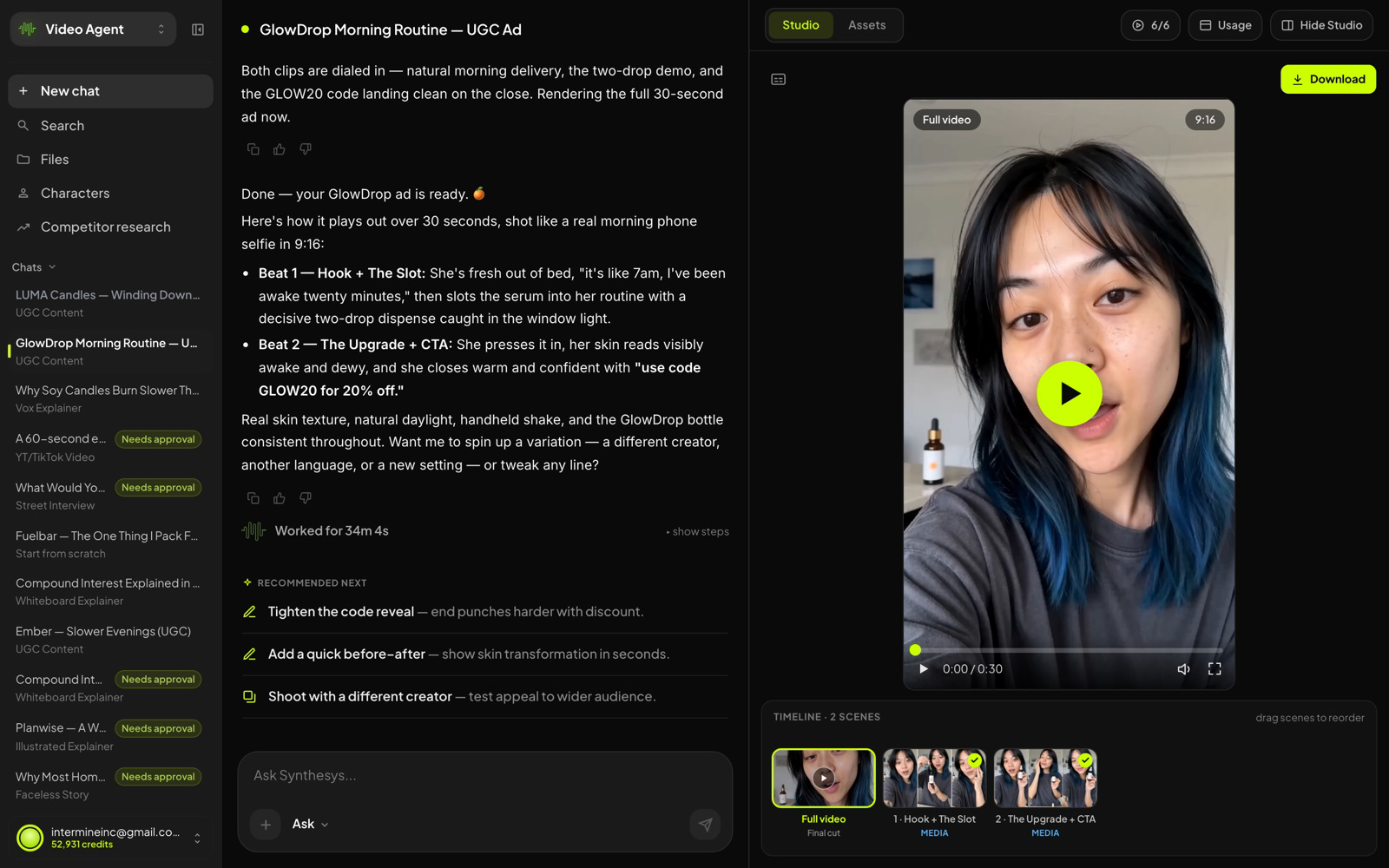
Done: “your GlowDrop ad is ready” — the finished vertical video, the recap, and three one-click next moves.
Was this article helpful?
That’s Great!
Thank you for your feedback
Sorry! We couldn't be helpful
Thank you for your feedback
Feedback sent
We appreciate your effort and will try to fix the article